Search
Function 1: template search
Applicable scenarios:
Multiple search templates can be set on each search page. Generally, you can enter the content used frequently.
Procedure:
Step 1: Create a search template, enter search criteria that are frequently used, click Save Search Criteria, enter the template name, and click Save.
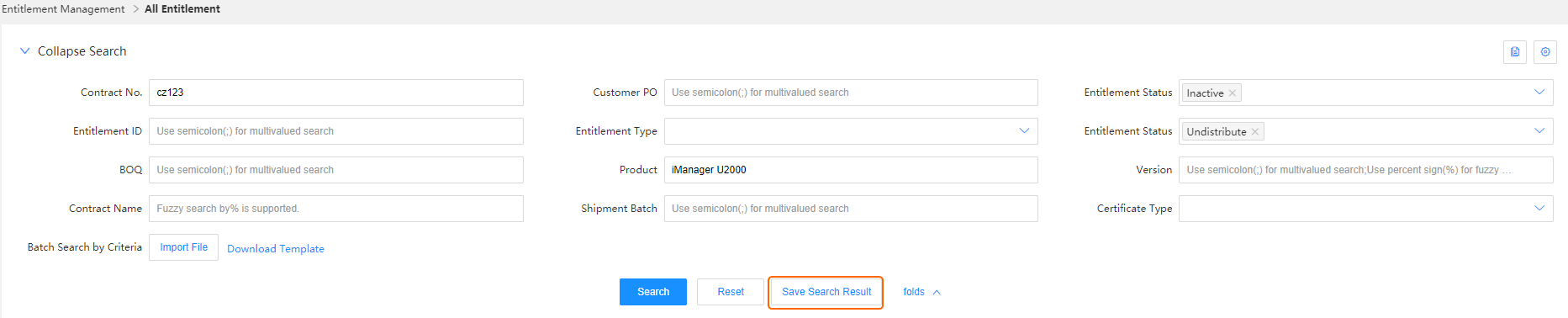
Step 2: To use the search template, click
 in the upper-right corner and click the template name you need. The search criteria will be automatically filled in the corresponding fields.
Function 2: fuzzy search and multi-value search
Fuzzy search: Choose this when you know only part of the search criteria.
For example, if the full content of the field to be searched is ABC, you can search by entering A%, AB%, %B%, %BC, or %C.
Multi-value search: Choose this when multiple values are used as search criteria, and use semicolons (😉 to separate the values.
For example, if you want to search the entitlements of both Product 1 and Product 2, enter Product 1;Product 2 in the box. Note that the semicolon in the middle is a half-width character.
Function 3: custom search
Procedure:
Step 1: Click Custom Search.

Step 2: Click
 . The search criteria will turn gray and will not be displayed on the page. Click
  for a hidden field, it will be displayed again as one of the search criteria.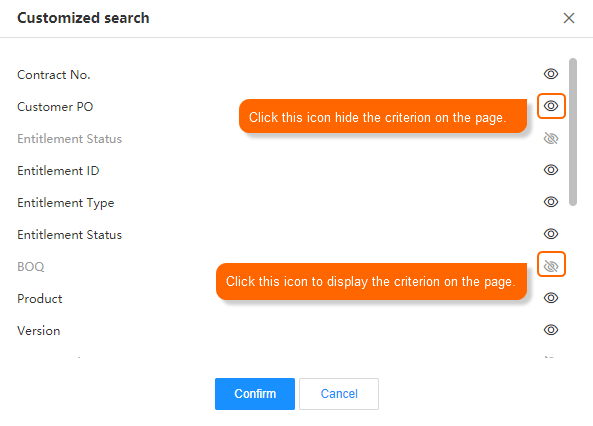
Function 4: personalized settings
Procedure:
Step 1: Click Custom Search.

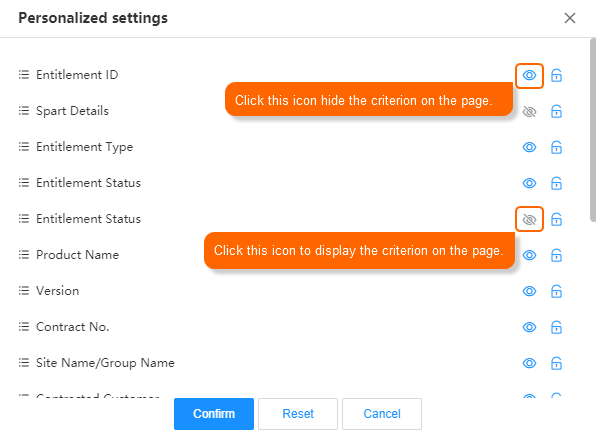
Step 2: Click
. The column will be grayed out and will not be displayed on the page. If you click for a hidden field, the field will be displayed in the column.